
Connect 115 cloud drive videos to Quest / Plex
A practical guide for the full CloudPop playback path: connect 115, generate local media entries, then play from Skybox, Plex, VLC, or other local-network players.
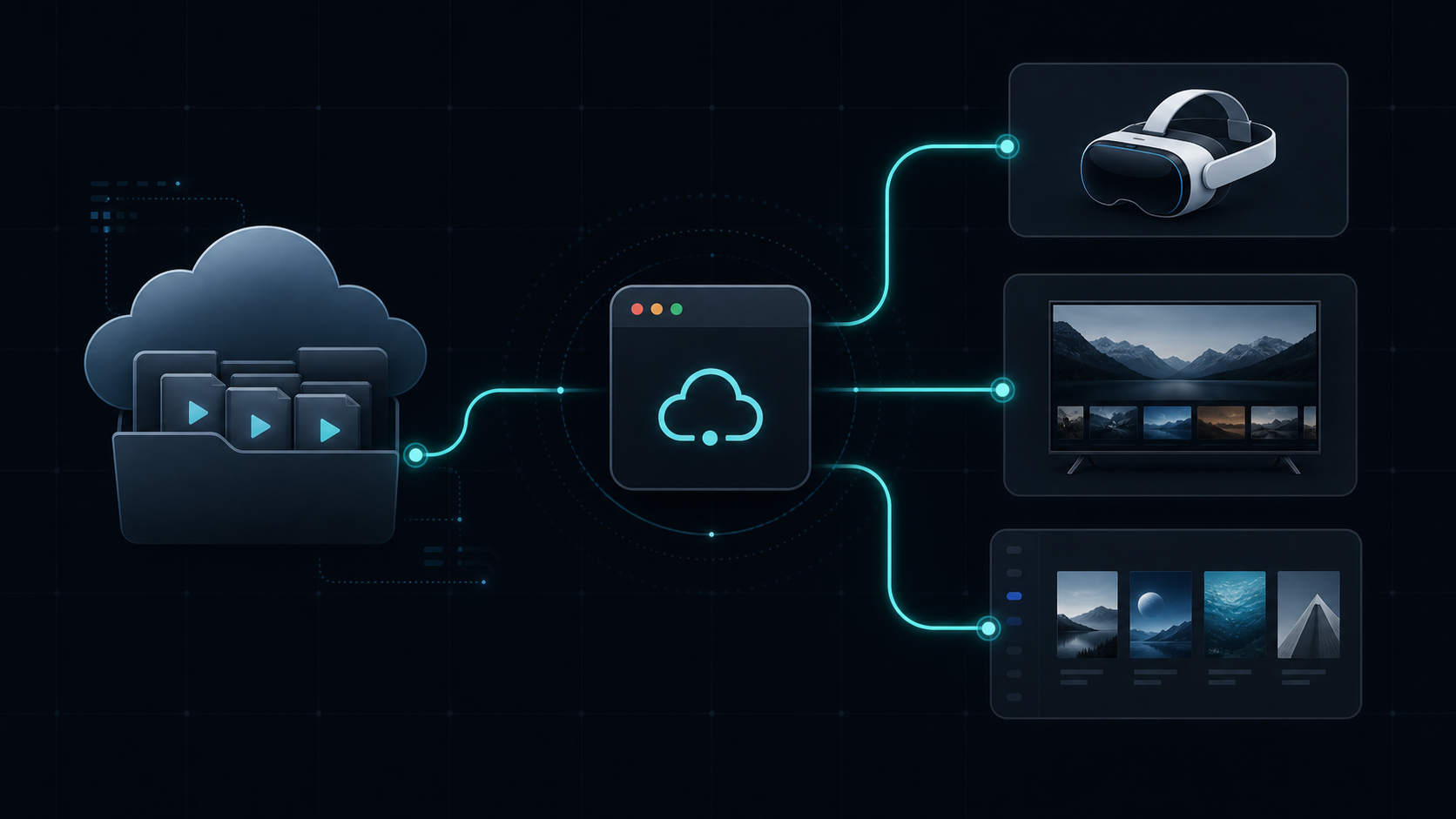
Before you start, prepare these basics.
Used to store VR, 4K movies, and other large video files.
It should usually be on the same local network as your playback devices.
Examples include Skybox, Plex, VLC, Emby, and Jellyfin.
CloudPop is not an online streaming content site. It is for your own videos already stored in 115 that you want to bridge into your local media library and players.
Four steps from 115 to local-network playback.
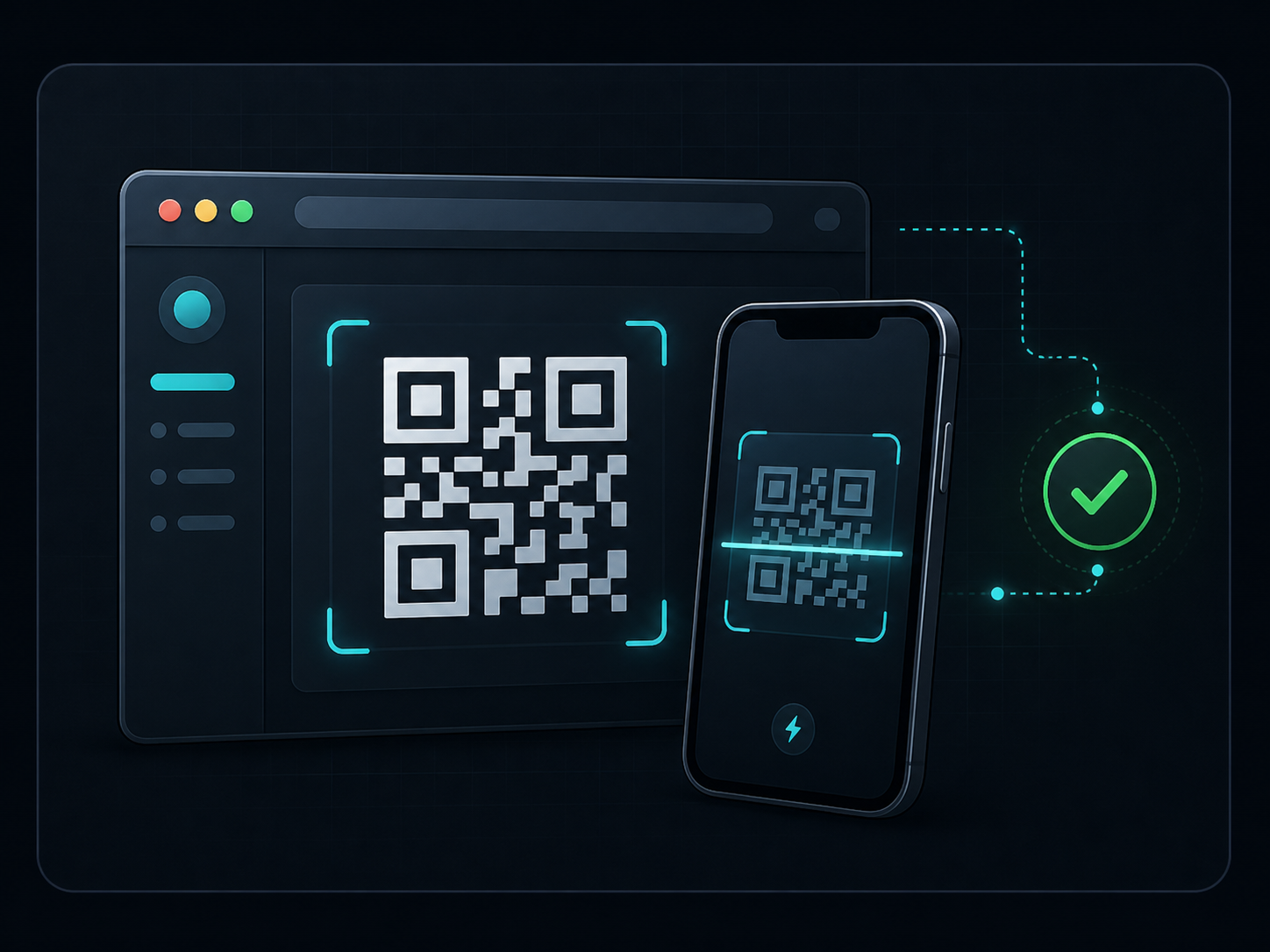
Connect your 115 cloud drive
Use the 115 mobile app to scan the QR code on the CloudPop login page. Once connected, CloudPop keeps the local session data needed for playback so you do not have to copy cookies manually every time.
- QR login is the preferred path
- Reconnect when the session expires
- Do not expose the local service to the public internet
Choose the folder that stores your VR / 4K videos
Pick the folder in 115 that contains your VR, movies, or large video library. CloudPop scans the video files and preserves original filenames so players can still recognize 180, 360, SBS, and OU naming hints.
- Keep movies, series, and VR videos in separate folders
- Preserve _180, _360, _SBS, and _OU in filenames
- Use incremental sync after the first scan
Generate local media library entries
CloudPop turns your 115 videos into local media entries. Plex, Emby, and Jellyfin can scan those entries, while CloudPop handles the actual video stream when playback starts.
- Plex scans local entries instead of remote video files
- Library entries stay stable
- Temporary download URLs are handled by CloudPop
Play from Skybox, Plex, or DLNA players
Quest and Pico users can start with Skybox + DLNA. Plex users can add the CloudPop output folder as a media library. VLC, TVs, and tablets can use local-network playback paths.
- Keep devices on the same local network
- Keep CloudPop running during playback
- Seeking depends on player and Range request support
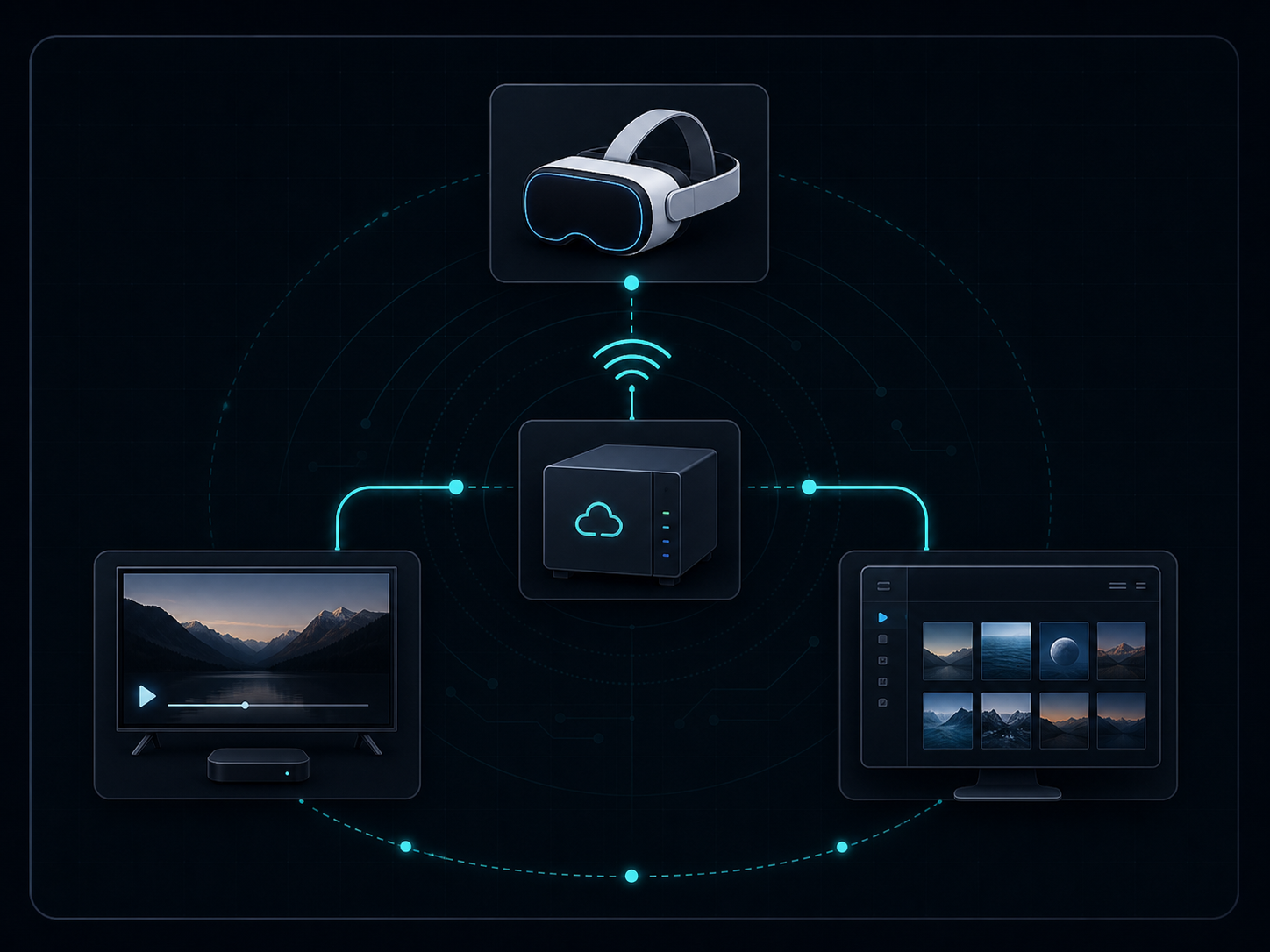
Different players work best with different entry points.
Quest / Pico + Skybox
Open Skybox network or DLNA sources, choose CloudPop, then browse and play your folders. This is a good fit for VR / 180 / 360 / SBS videos.
Plex media library
Add the CloudPop output folder to Plex. Plex handles metadata and library browsing, while CloudPop handles stream proxying during playback.
VLC / TV / tablet
Any player that supports DLNA, Plex, or HTTP streaming can potentially use CloudPop as a local-network media source.
CloudPop is better suited for browsing and multi-device playback.
Manual download
Fine for a few files, but large VR / 4K videos take time, consume storage, and are awkward to move across devices.
Cloud drive mounting
It looks like a local folder, but media scanners may generate many remote reads for probing, metadata, and thumbnails.
Local entries + playback-time proxy
Players see stable local entries, while CloudPop accesses the real 115 stream only when playback starts.
Common questions.
What happens when a 115 download URL expires?
Players access a stable local CloudPop URL. CloudPop fetches and caches the real temporary URL during playback, and can refresh it when needed.
Will Plex scanning trigger lots of 115 requests?
CloudPop is designed so Plex scans local media entries instead of directly reading remote 115 video files. This reduces remote reads caused by scanning, thumbnails, and probing.
Can Skybox discover CloudPop directly?
On the same local network, Skybox can discover CloudPop through DLNA / network sources. Actual behavior still depends on network permissions, player support, and video format.
Is CloudPop only for 115?
115 is the first cloud source used for this guide because it is the initial supported source. CloudPop is designed as a multi-source media bridge for cloud drives, local disks, NAS, and more.